
Music Mode turns Jacky into a mini music companion that reacts to what you're listening to. Jacky detects music from your favorite apps, dances to the beat, glows in sync with the rhythm, shows you what's playing, and even comments on the songs.
How does Jacky detect music?
When you enable Music Mode, Jacky automatically checks your system's active media session every 3 seconds. This works with most players and services:
- Spotify
- YouTube (in the browser)
- Apple Music
- Local music players (Windows Media Player, VLC, etc.)
- And virtually any app that shows playback info in your system
What does Jacky do in Music Mode?
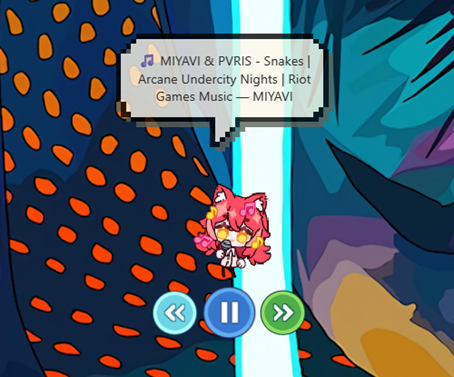
Shows what's playing
When a new song starts, Jacky displays a speech bubble with the track info, like: "Now playing: Bohemian Rhapsody by Queen".
Comments on songs with AI
If you have LLM dialogue enabled and the allow_comment_music permission is active (under Settings → Permissions), Jacky can generate witty, fun, or curious comments about the currently playing song. Each comment is unique and tailored to the personality you've selected.
Dances to the beat
Jacky listens to the audio coming from your system and detects beats in real time. When a beat hits, Jacky breaks into a dance move that lasts just long enough to bridge to the next beat — so his dancing actually follows the rhythm of the song. Between beats, he walks or runs across your screen, and every few seconds he might spontaneously dance even without a detected beat.
Floating media player
A small widget appears next to Jacky with playback controls:
- Play / Pause: Control playback directly from Jacky.
- Next track: Skip to the next song.
- Previous track: Go back to the previous song.
This lets you control your music without switching windows.
Glows to the rhythm
A soft, colorful halo appears around Jacky while music plays. The glow grows brighter and larger on each beat, then gently fades as the music settles — creating a pulsing effect that mirrors the energy of the song. The glow also slowly cycles through colors, giving Jacky a vibrant, living aura that changes with the mood of your music.
If you prefer a calmer experience, you can turn off the glow from Settings.
How to activate it?
Enable Music Mode from Jacky's context menu (right-click on Jacky anywhere on the screen).
Like other active modes, Music Mode temporarily mutes Jacky and disables window interaction so you can enjoy your music without interruptions.
Requirements for AI song comments
For Jacky to make comments about music you need:
- LLM dialogue enabled (Settings → LLM).
- The "Allow music comments" permission enabled (Settings → Permissions).
- An AI provider configured (Ollama, Groq, or OpenRouter).
If you don't have AI configured, Jacky will still detect songs, dance, and show you track info — he just won't make personalized comments.
Perfect for: Listening to music while working, studying, or doing chores. Jacky keeps you company without being intrusive, and his comments and dances add a fun touch to your music experience.